In today’s digital age, we’re all about getting things instantly – from news updates to social media notifications. But have you ever wondered how those real-time updates work behind the scenes? That’s where real-time web applications come into play! These apps provide us with live updates without the need to manually refresh the page. Real-time applications are like live conversations between your web browser and the web server.
These applications are used for various purposes requiring immediate updates, including live chats, dashboards, updating live maps with location data, and more. As a QA engineer, I’ve had the opportunity to work on web application projects that use SignalR, a framework that enables real-time web functionality, mostly by way of WebSockets.
In this blog, I’ll share insights I’ve gained from testing these real-time projects and provide you with some practical tips and best practices on how to test them yourself.
What is SignalR and How Does It Work?
The primary use case for SignalR is to deliver real-time updates to the web user interface (UI). SignalR is a library that simplifies the process of adding real-time web functionality to applications and coordinates communication between servers and clients in real time.
As a QA tester, your goal is to ensure that these updates are timely and accurately integrated into the UI. Test scenarios should cover various data types, such as text, images, or any custom elements specific to your application.
Is My Application using Real-Time Updates?
There are two common ways to determine if a web application is using SignalR or some other implementation of web sockets: inspecting the network traffic or monitoring the console logs.
1. Inspect Network Traffic
Use the browser’s developer tools (such as Chrome DevTools or Firefox Developer Tools) to inspect the network traffic. Look for created SignalR hubs in the Network tab.
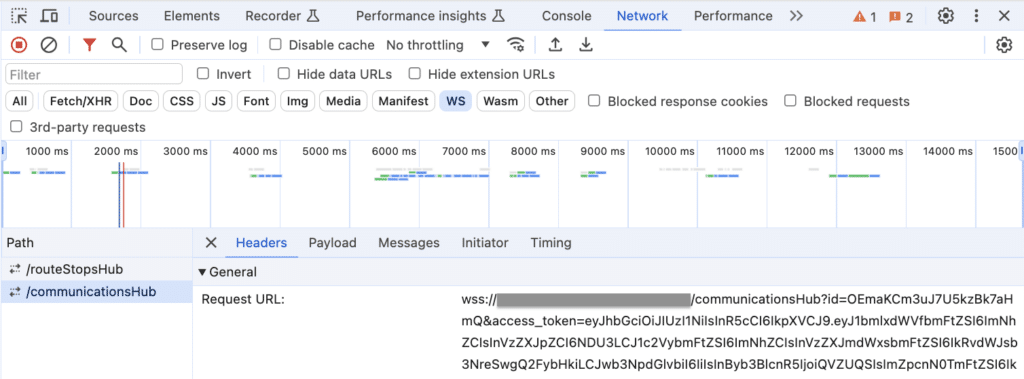
SignalR supports multiple transport (communication) protocols; in this example, it uses Web Sockets at its core. It supports both Web Socket (WS) and Web Socket Secure (WSS) protocols. The application connects to the SignalR hub using the appropriate protocol based on its requirements. SignalR also supports fallback mechanisms to ensure compatibility with older browsers that don’t support Web Sockets. With that said, all modern browsers support WebSockets. If you’re wondering about the details, check out: Can I use WebSockets?
WebSockets establish a continuous, two-way connection between the browser and the server that remains open, allowing continuous data exchange without the need for repeated requests. This allows the server to send real-time updates as soon as they’re ready, without needing the client to request them first.
2. Monitor Console Logs
SignalR connections may log messages to the browser console during initialization. Monitor the console logs for related messages or errors.
Real-Time Testing Considerations
Below I’ve organized my own list of testing considerations that I use when testing a web application with real-time updates. I’ve organized them into 5 major areas: data, security, reconnection, compatibility, and project-specific testing.
Real-Time Data Testing (UI Integration)
- Test scenarios should validate that real-time updates are received promptly by the client when changes occur on the server, and ensure that the user interface (UI) reacts promptly to these updates, dynamically reflecting changes in data.
- Verify the timeliness of the updates, especially in scenarios with high-frequency data changes.
- Verify that the UI remains responsive and does not freeze or become unresponsive during real-time updates.
- If the app has ordering logic, verify that the received real-time data is properly inserted according to the specified order.
- If a user sets filters on the UI, verify that the received real-time data is appropriately filtered according to the UI filters if it does not match the criteria.
Security Testing
- Authentication: Verify that only authenticated users can establish a SignalR connection and receive updates.
- Authorization: Ensure that users have the appropriate permissions to receive certain updates.
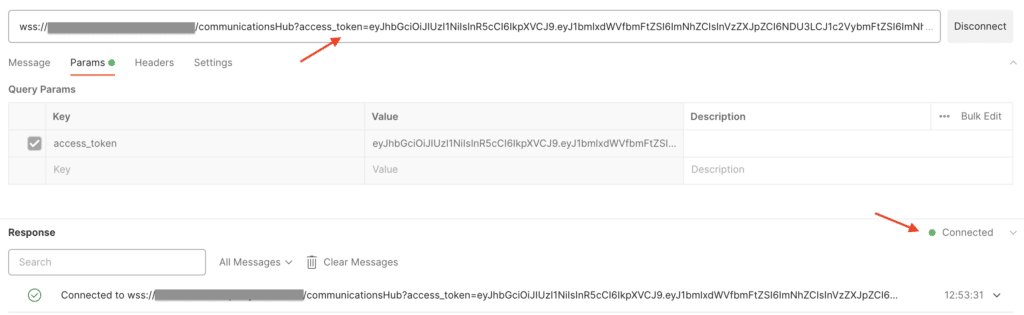
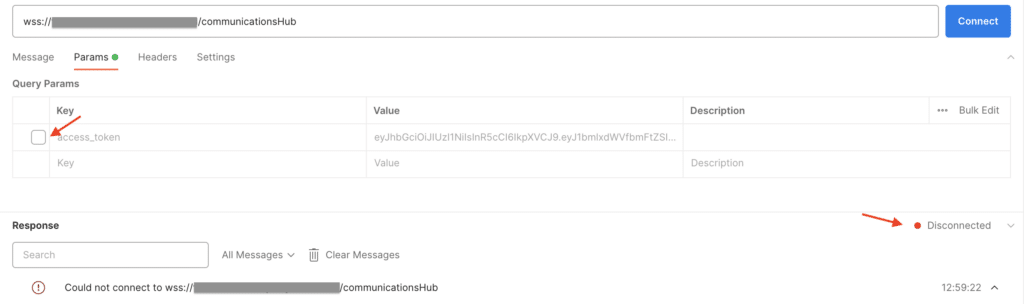
The hubs in Trailhead’s systems usually require authentication to connect. During testing, you can use Postman to verify that unauthorized requests cannot connect. Once a connection is established, it can continue regardless of token expiration, but a reconnect would require a valid token.
In standard web APIs, bearer tokens are typically included in the HTTP header. SignalR is unable to set these headers in browsers when using WebSockets as the transport protocol. The token is transmitted as a query string parameter.
Open Postman, click “New” and select “WebSocket Request”, then set up a request to match the screenshot below:
Reconnection Testing
- Test scenarios should verify the application’s behavior when the SignalR connection is lost and automatically re-established.
- Ensure that the application reconnects to the SignalR hub and resumes real-time updates without data loss or inconsistencies.
Testing may require an interruption of the internet connection or other means to force the connection to fail. To simulate network interruptions, you can use the browser’s DevTools (Network tab) to disable the internet connection. Once you go to offline mode, verify how the application handles the loss of connection (e.g., displays a message to the user if the SignalR connection is disconnected). When the connection is reconnected remove the message.
Disconnect and reconnect your internet:

Example of a message:

If your app uses additional logging in the browser console, you might see something like this:
Information: Connection disconnected. / SignalR for [Hub] is now stopped / SignalR connection lost.. Attempting to reconnect../ Information: WebSocket connected to wss://Cross-Browser Compatibility Testing
- Ensure that WebSocket functionality works consistently across different web browsers and versions.
- Test the application on popular browsers like Chrome, Firefox, Safari, and Edge to identify any browser-specific issues.
Project-Specific Testing
Here, I’d like to share some specific testing scenarios that demonstrate how we implement the logic for real-time updates. Perhaps it will be useful for other QAs who have similar implementations in their projects.
- If the app contains multiple pages and only certain pages require real-time updates, ensure that your app establishes a SignalR connection when you navigate to these specific pages, rather than upon logging into the app, etc.
- Verify how the app handles the scenario where a user opens the page and quickly leaves it while SignalR connection initialization is in progress and back.
- If the app subscribes to live updates using group subscription methods (e.g., a live map app that subscribes to particular route updates (“RouteVehicleUpdates” by Route_ID as argument) when a route is selected to be visible on the map )
- Verify that the app subscribes to updates and leaves the group subscriptions based on whether the feature is selected or unselected in the UI.
- When the user navigates away from the page, logs out of the app, or closes the app, the UI should leave any group subscriptions.
- If the user’s client (browser) disconnects from the SignalR hub, group subscriptions will fail. If the hub is able to reconnect, any visible features should reconnect to the live updates group.
- If the page has access controls for certain features, and each feature is linked to its own SignalR hub, ensure it doesn’t connect if the user doesn’t have permission to see it.
- If there is logic based on data filtering (e.g., where both users should receive the same type of real-time updates, but the data is filtered based on the user’s settings), verify that the server appropriately filters the data before sending it.
- Test real-time updates with multiple tabs open in the same browser, and verify that updates are synchronized across all instances.
Conclusion
In conclusion, testing real-time updates in a web app is very important for making sure users have a good experience. Remember to use the right tools and simulate various user interactions.
By following the steps outlined in this article, you can effectively test your app’s real-time features, helping catch issues early and ensuring your app runs reliably for all users